Set up your workspace
The order to do things in when you're new, and where the Setup Guide fits.
- Owners
- Admins
When you create a workspace, Ovrilo opens the Setup Guide. It lists what makes the workspace useful and ticks each step off by itself as you finish it. You can come back to it any time from Get started.
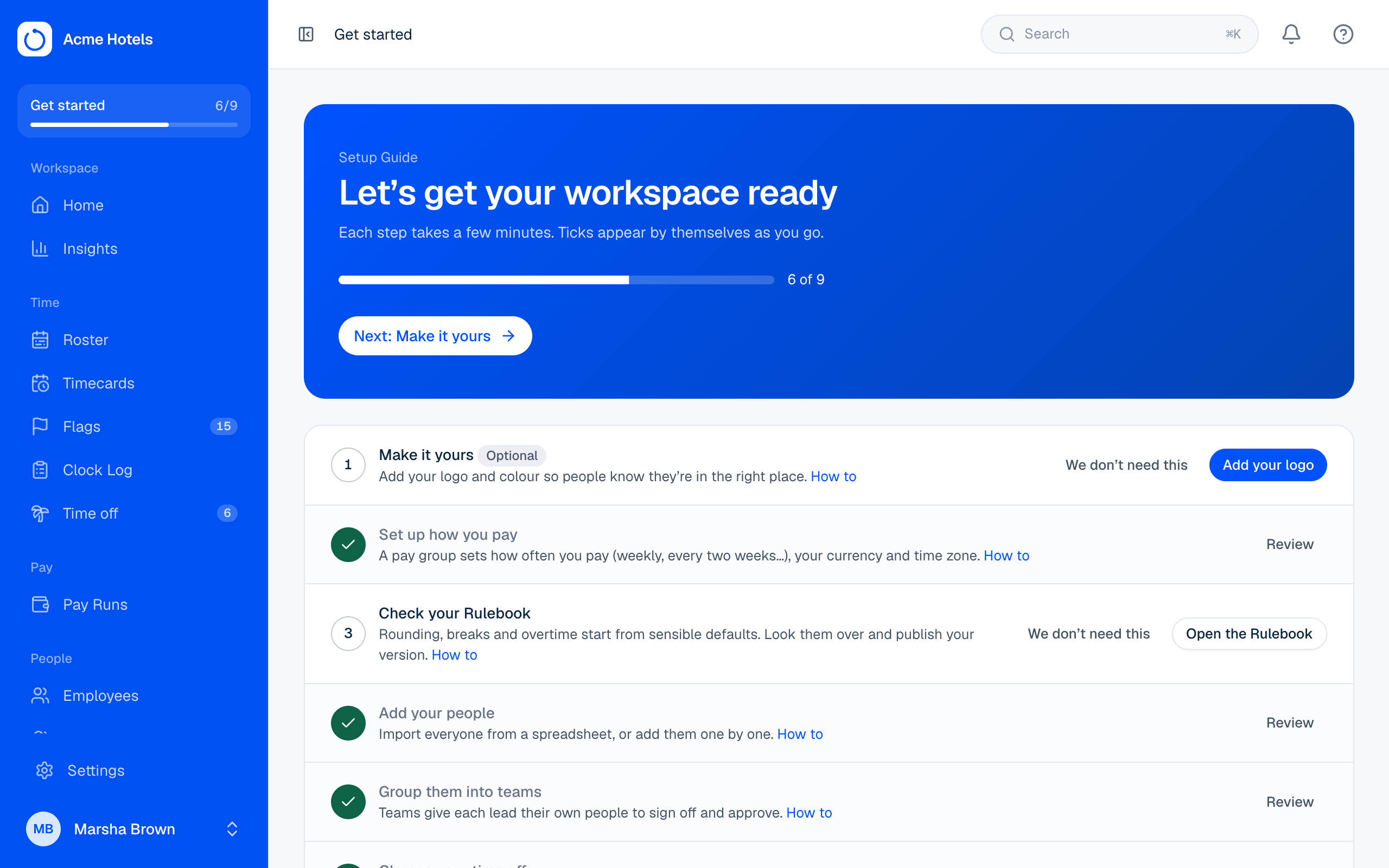
The order that works best
- Make it yours. Add your logo and colour in Settings › Workspace.
- Set up how you pay. Add a pay group for each pay schedule in Pay Runs › Pay groups.
- Check your Rulebook. Look over rounding, breaks and overtime in Pay Runs › Rulebook & rates and publish your version.
- Add your people. Import them from a spreadsheet in People › Import.
- Group them into teams. Teams decide who signs off and approves for whom: Teams.
- Choose your time off (if your plan includes Time off). Start from the rules for your country in Time off › Policies.
- Add your locations and pair a Clock Station so people can start clocking in. Add each workplace in Settings › Locations, then pair a tablet in Settings › Clock Stations. Using fingerprint, face or card clocks instead? See Time clocks and the connector. To let people clock in from their phones as well, set the rule on each pay group (see Clock in from a phone or computer).
- Invite your team: admins, payroll and team leads, in Settings › Users.
Tip: If a step doesn't apply to you, choose We don't need this and it stops counting against your progress.
When you're done
Once every step is done (or marked as not needed), the guide disappears from the menu. People can clock in, and your first Pay Run is ready when the pay cycle ends.
Your workspace starts on the plan in the quote you accepted. Owners can see the plan, seats and invoices in Settings › Billing.
Related guides
Still stuck? WhatsApp us.
Have your workspace address and the page you were on ready. With your permission we can look at it with you.