Clock in from a phone or computer
Let people clock in from Me, anywhere or only at your locations, and review the ones that weren't.
- Owners
- Admins
- Payroll
- Team leads
- Employees
As well as the Clock Station, people can clock in, take a break and clock out from Me on their phone or computer. You decide who can, and where.
Add your locations
In Settings › Locations, add each place people work:
- Map pin and radius. Click the map where people should be (or choose Use where I am now while you're there), and set how far from the pin counts, for example 150 metres. Phones share their location when someone taps Clock in.
- Office IP addresses. If people clock in from the office computers, add the office's internet address (the page shows yours). Anyone on that network counts as being there, with no location needed.
Clock Stations belong to a location too; pick it when you add or edit a station.
Choose who can clock in from Me
Each pay group has a rule, under Pay Runs › Pay groups:
| Rule | What happens |
|---|---|
| Not allowed | Clock Station only (the default) |
| From anywhere | Clock in from any phone or computer |
| Only at chosen locations | Their phone's location (or the office network) must match one of the locations you pick |
With Only at chosen locations, also choose what happens elsewhere: allow it and flag it for review, or don't allow it. To give one person a different rule, open their profile and use Clock in from Me.
Reviewing punches from elsewhere
When someone clocks in outside their locations and the rule allows it, the punch is kept and a Clocked in outside the allowed locations flag appears on Flags, saying how far away they were. Their team lead also gets a notification. Check it with them, fix the time in the Clock Log if needed, then mark the flag OK. The Clock Log shows "Me" as the source, the location, an Outside badge and a link to the map.
A location fix that's rougher than the radius counts as outside, so ask people to turn on precise location for their browser.
For employees
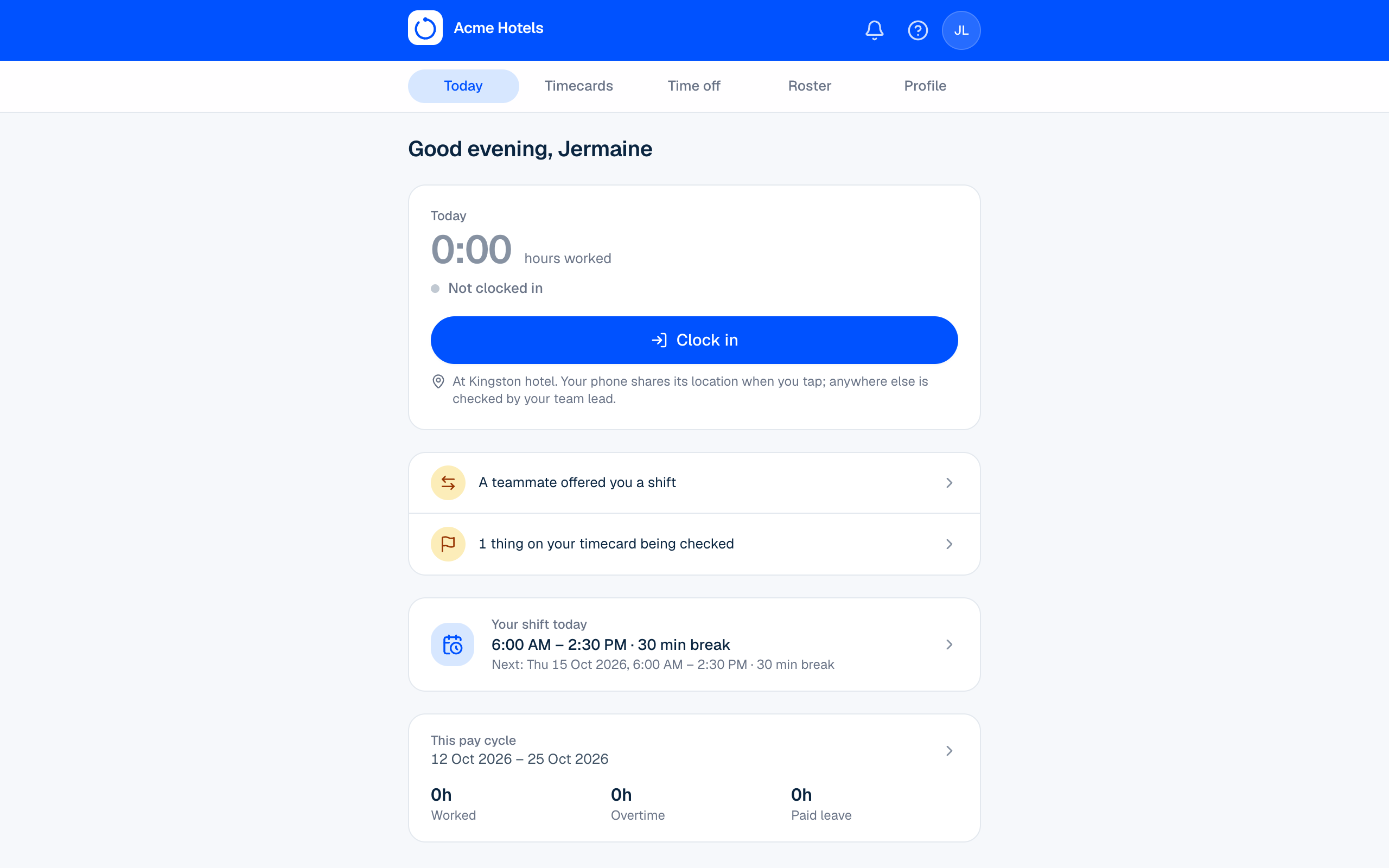
On Me › Today, tap Clock in, Start break, End break or Clock out. If your workplace checks where you are, your phone asks to share its location the first time; choose Allow. If you clock in somewhere else, your team lead will check it; if it isn't allowed, use the Clock Station.
Punched and paid times
Timecards show both the time someone punched and the time they're paid from, for example punched 6:57 AM, paid from 7:00 AM because early arrivals are paid from the shift start. Open a day's Why these hours? to see both side by side.
Related guides
Still stuck? WhatsApp us.
Have your workspace address and the page you were on ready. With your permission we can look at it with you.