Invite users and choose roles
Owners, admins, payroll managers, payroll, team leads and employees, and what each can do.
- Owners
- Admins
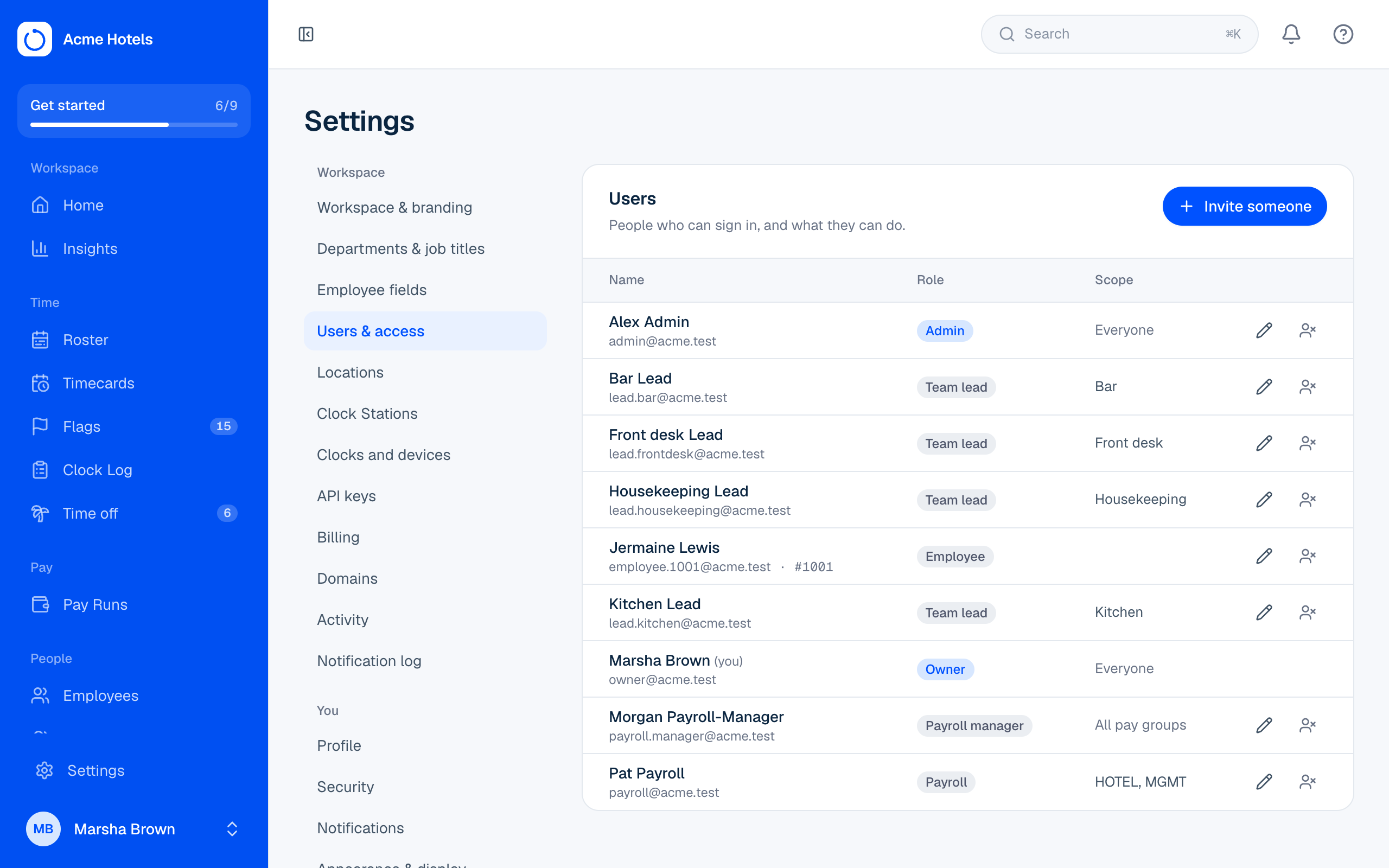
Roles
| Role | Can |
|---|---|
| Owner | Everything, including the workspace itself |
| Admin | Everything except closing the workspace |
| Payroll manager | Everything Payroll can do, for every pay group, plus pay groups, the Rulebook & rates and holidays |
| Payroll | Pay Runs, pay rates, time off balances and policies, Insights |
| Team lead | Their teams' timecards, flags, roster, sign-offs and time off approvals |
| Employee | Only Me: their own hours, time off, roster and profile |
Invite someone
- Open Settings › Users and choose Invite.
- Pick their role. For an employee, link them to their employee record so they get Me.
- Send an email invitation (valid for 14 days) or create a setup code (valid for 7 days) for staff without email. They redeem it at your workspace's
/setuppage with their employee number.
Payroll users can be limited to certain pay groups. Payroll managers always see every pay group, since they set up pay groups and their rules.
Related guides
Still stuck? WhatsApp us.
Have your workspace address and the page you were on ready. With your permission we can look at it with you.