Time clocks and the connector
Connect fingerprint, face or card clocks of any brand, match badges, and know when a clock goes quiet.
- Owners
- Admins
Besides the Clock Station tablet and Me, Ovrilo can take punches from time clocks: fingerprint, face, card or PIN clocks of any brand, including ones you already own. A small program called the connector runs on a computer at your site, reads the clocks, and sends their punches here. If the internet drops, the clocks and the connector keep every punch and send them when it's back.
This needs Clocks and devices on your plan. We come to your site to install the connector, set up your clocks and show your managers and staff how it all works; WhatsApp us to arrange a visit. The steps below are for moving the connector to a new computer, or if you're doing it with us on a WhatsApp call.
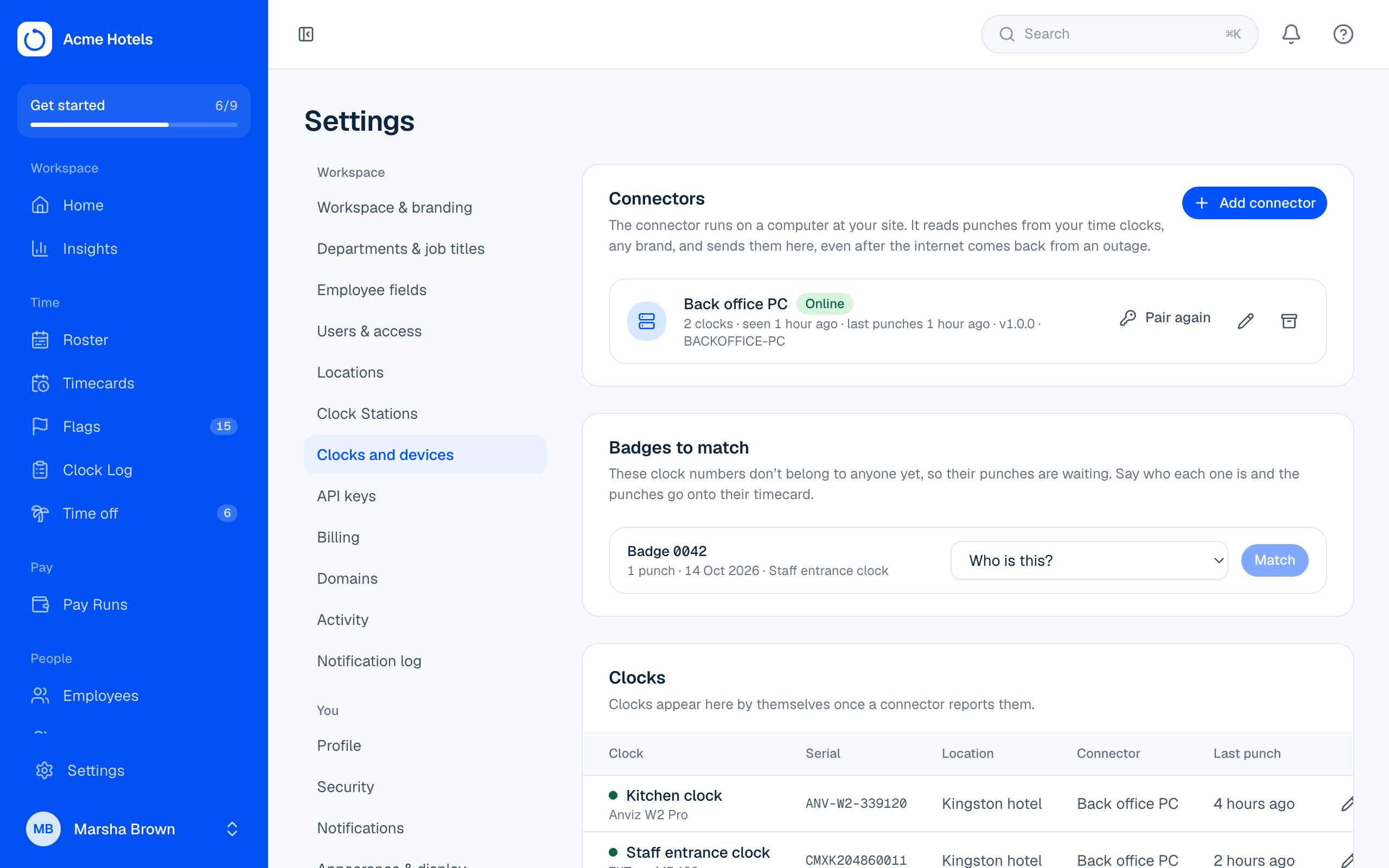
Pair the connector
- In Settings › Clocks and devices, choose Add connector, name it after the computer (for example "Back office PC") and pick its location.
- You get a 6-digit code, valid for 30 minutes.
- In the connector, enter your workspace address and the code.
The connector shows Online within a minute, and its clocks appear under Clocks by themselves. Give each clock a name, like "Staff entrance", and the right location.
To move the connector to a new computer, choose Pair again and enter the new code there; the old one stops working. Remove stops a connector for good. Punches it already sent stay.
Badges: who is who on the clocks
Each person is known on the clocks by a number, usually their employee number, and that's all Ovrilo needs. If someone uses a different number on the clocks, add it under Clock badges on their profile.
When a clock sends a number nobody has, its punches wait under Badges to match (and on Home). Choose who it is and select Match: the badge is saved and the waiting punches go onto their timecard.
When a clock goes quiet
If the connector hasn't been in touch for 30 minutes, it shows Offline, and owners and admins get a notification (and see it on Home). Nothing is lost: the clocks keep their punches until it's back, and you're told when it is. Usually the computer is off or asleep, or the site's internet is down.
Punches after payroll closed
If a clock sends a punch for a day whose pay cycle is already closed (say it was offline for days), Ovrilo keeps it but doesn't change the closed cycle. A Punch arrived after its pay cycle closed flag appears on Flags in the current cycle, so payroll can decide whether to pay it now.
In the Clock Log
Punches from clocks show the clock's name and how the person identified themselves (fingerprint, face, card…). Fix them like any other punch, with a reason.
Related guides
Still stuck? WhatsApp us.
Have your workspace address and the page you were on ready. With your permission we can look at it with you.