Pay items: allowances, bonuses and deductions
Add money on top of hours, one-off or every cycle, and send it to payroll with the hours.
- Owners
- Admins
- Payroll
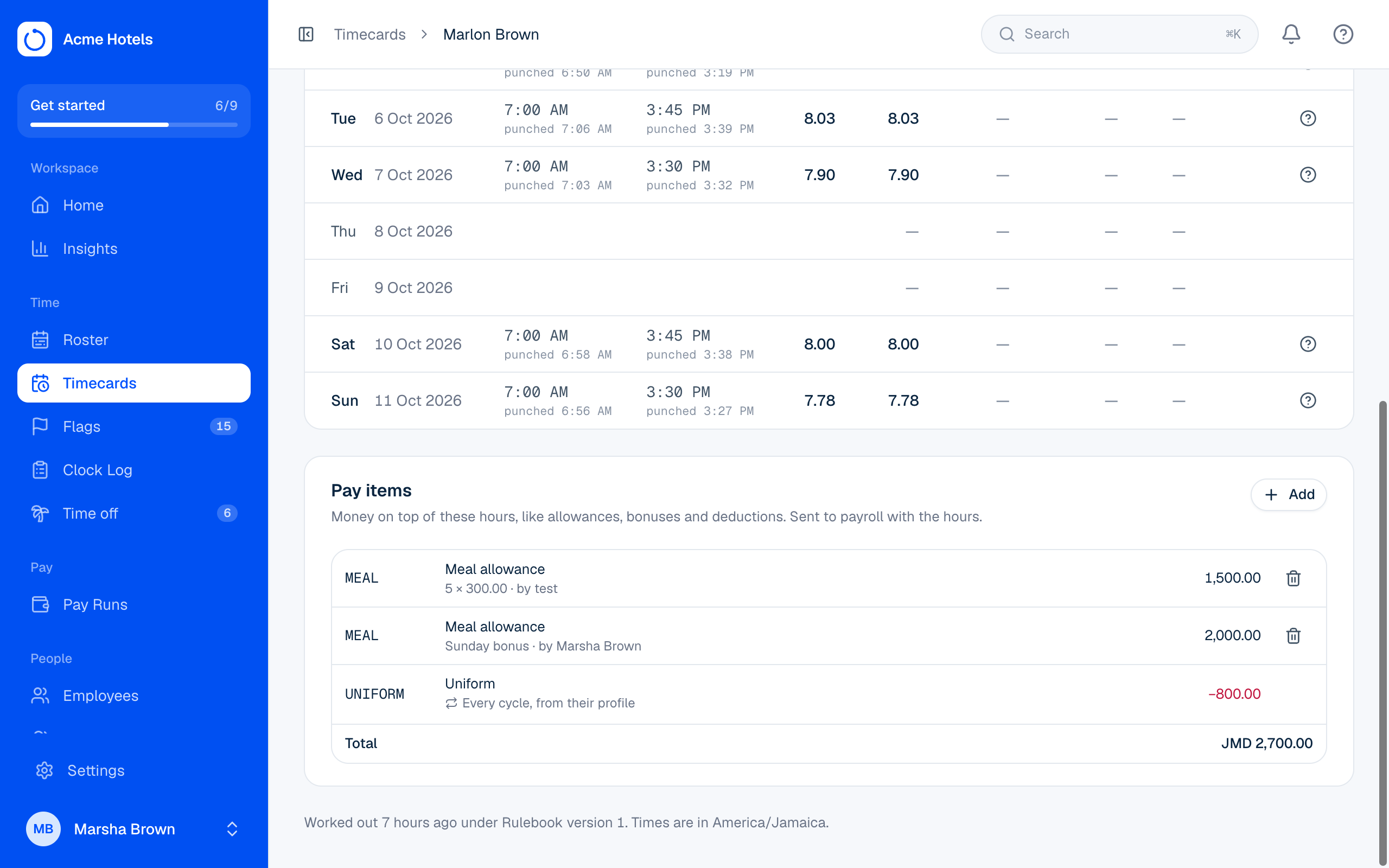
Pay items are money on top of hours: a meal allowance, a Sunday bonus, tips, or a deduction like a uniform or a loan repayment. They go to payroll in the same file as the hours. Only people who can see pay can add or see them.
Ovrilo doesn't work out tax, NIS or other statutory deductions; your payroll system does that from the file.
1. Set up the codes
In Pay Runs › Rulebook & rates, under Pay item codes, choose Add code:
- Code: what your payroll system calls it, like
MEALorUNIFORM. - It is: added to pay (allowance, bonus) or taken off pay (deduction).
- Usual amount: optional; filled in for you when you add one.
2. Add pay items
- For one cycle: open the person's timecard and use Pay items › Add. Enter an amount, or a quantity and rate (for example 5 meals × 300).
- Every cycle: on the person's profile, Pay & identifiers › Recurring pay items. Set the amount and the dates; it applies in full to every pay cycle in that range. Choose End to stop it.
- Many at once: on the Pay Run's Review totals step, choose Upload pay items from a spreadsheet. The CSV has the columns
employee_number, code, amount, quantity, rate, note. Use either an amount or a quantity and rate, and enter deductions as positive numbers. Every row is checked first; if any row is wrong, nothing is saved and the problems are listed by line.
Pay items can't be changed once a cycle is closed. Reopen the cycle first.
Sign-offs and files
Adding, changing or removing a pay item after a team lead signed off marks the sign-off Changed since sign-off, just like a change in hours, and files made earlier are marked out of date.
In the files, each pay item code gets its own column after Total Payable Hours in the summary, and its own line in the transactions files (with the quantity and rate if you entered them). Deductions are negative. The payroll API includes them too.
Related guides
Still stuck? WhatsApp us.
Have your workspace address and the page you were on ready. With your permission we can look at it with you.