Notifications: the bell, email and browser alerts
Where requests, decisions and roster updates reach you, and how to choose.
- Owners
- Admins
- Payroll
- Team leads
- Employees
When something needs you or changes for you, Ovrilo tells you. Every notification lands in the bell, and can also come by email and as a browser alert on your computer or phone.
The bell
The bell sits at the top of every page (in Me, it's in the coloured band). A red number shows how many you haven't read.
- Click it to see the latest ten. Some can be acted on right there: Approve or Decline a time off request, Accept a swap.
- Choose See all notifications for everything you've had, with Unread and Archived tabs, a search box and categories.
- Open one to see the full details, the same as the email, and a line saying whether it was also emailed or pushed, or why not.
Tip: Turning emails off never loses anything. Every notification is still in the bell.
What you'll get
| You are | You hear about |
|---|---|
| An employee | Time off decisions, swap offers and decisions, your roster when a week is published or changes, and replies to problems you reported |
| A team lead | Time off requests and swaps waiting for you, problems your team reports, and sign-offs payroll sent back |
| Payroll | Pay groups where every team is accepted and the cycle is ready to close |
| An owner or admin | All of the above for your people, plus when a time clock connector stops reporting or comes back. Owners also hear when support steps in and when a custom domain starts working |
Owners, admins and team leads also get a Friday morning roundup: what's waiting on you, what was decided this week, and who's off next week.
Choosing where they reach you
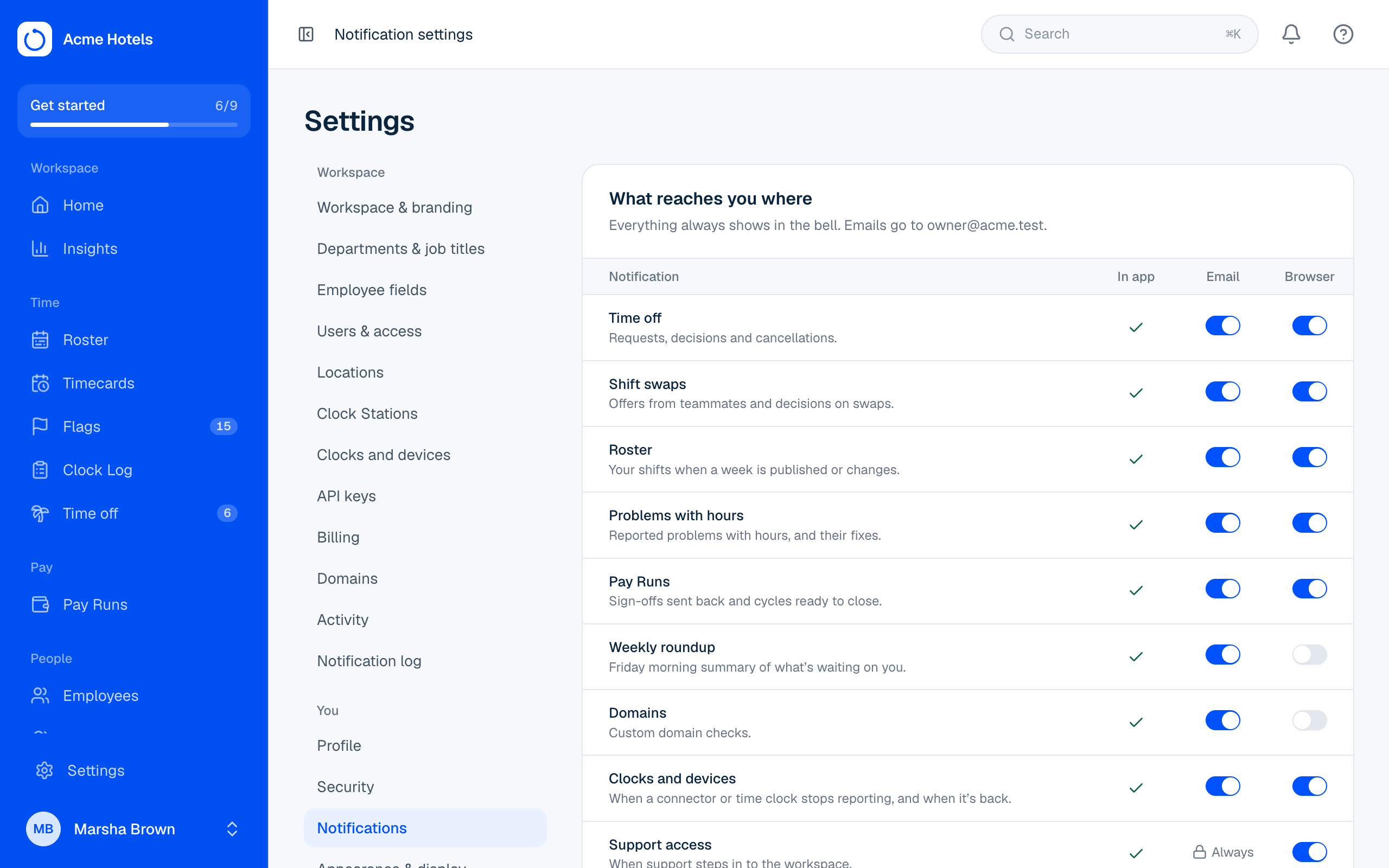
Go to Settings › Notifications (employees: Me › Profile).
- Each row is a kind of notification; switch Email and Browser on or off for each. The bell is always on.
- Support access and Account security emails can't be turned off. They tell you when someone opened your workspace or changed your email or password.
- Send me a test checks that everything reaches you.
Browser alerts on your computer or phone
- In Settings › Notifications, choose Turn on for this device.
- Your browser asks for permission. Choose Allow.
- That device now appears in the list. Remove it there to stop alerts on it.
Tip: On an iPhone or iPad, first open Ovrilo in Safari, tap Share, then Add to Home Screen, and open it from the new icon. Apple only allows alerts for apps added this way. Then turn alerts on as above.
If you clicked Block by mistake, allow notifications for this site in your browser's settings and try again.
Your email address
Everyone needs a confirmed email, so notifications can reach you and you can reset a forgotten password. If you don't have one on file, you'll be asked to add it the next time you sign in, then click the link we send. Clock Stations don't need it.
For owners and admins: the notification log
Settings › Notification log lists every notification in the workspace, who got it, and whether it was emailed or pushed. Use it when someone says they never got something: you'll see if their email is off, unconfirmed, or the send failed.
Related guides
Still stuck? WhatsApp us.
Have your workspace address and the page you were on ready. With your permission we can look at it with you.