Roster, rotations and swaps
Plan shifts week by week, repeat patterns with rotations, and approve swaps.
- Owners
- Admins
- Team leads
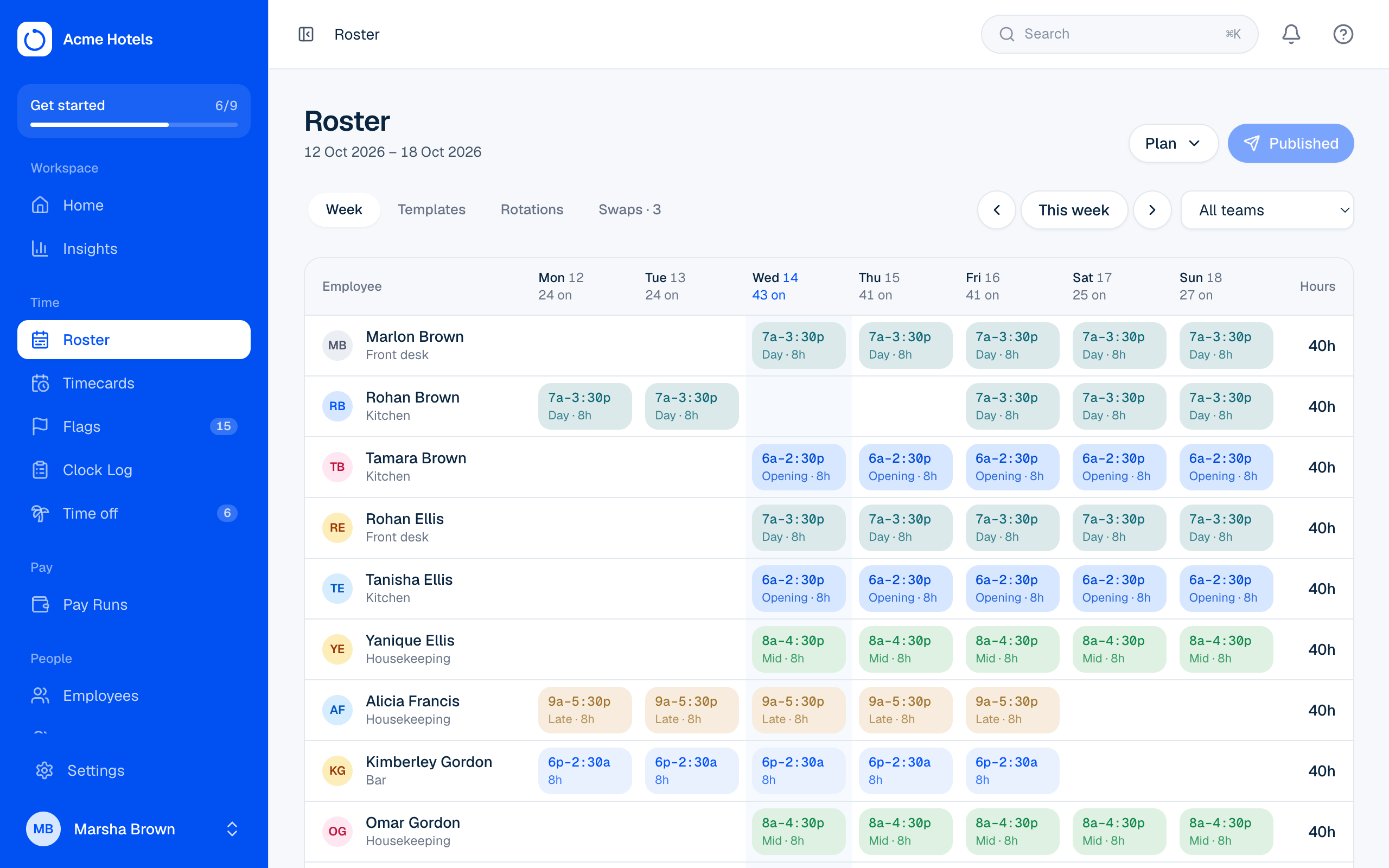
Plan a week
- Open Roster. Each row is a person, each column a day.
- Click a cell to add or change a shift: pick one of your shift templates, or type the times. Use Fill from rotations or Copy last week to start fast. For a split shift (say 6:00–10:00 and 16:00–20:00), add the first shift, then use the small + under it in the cell, or Another shift this day when editing. Shifts for the same person can't overlap.
- Publish the week. People see published shifts in Me, and shifts can let early arrivals be paid from the rostered start.
Each shift of a split day counts on its own: early starts and grace are rounded against the shift the punch is nearest to, and Punctuality checks each shift. Attendance counts the day once, from its first shift.
Shift templates
Templates are your usual shifts, like Morning 7:00–3:00 with a 30-minute break, each with a colour. Add them in Roster › Templates. They're offered first when you add a shift, and shifts made from them show in their colour on the week, so you can see the mix at a glance. Changing a template doesn't change shifts already rostered.
On a phone
On a phone, the week shows as a list for each day instead of the wide grid. Tap a shift to change it; add new shifts on a bigger screen.
Rotations
A rotation is a 1–4 week pattern of shift times, assigned to people from a date. Set them up in Roster › Rotations.
Swaps
People offer a shift to a teammate in Me: hand it over, or trade one for one. The teammate accepts, then you approve or decline it in Roster › Swaps. The roster updates itself.
Related guides
Still stuck? WhatsApp us.
Have your workspace address and the page you were on ready. With your permission we can look at it with you.